Troubleshooting
Defragment a Hard Drive in Windows 11: Optimize Drives
Written by Windows 11 Field Guide Editorial Team · Updated
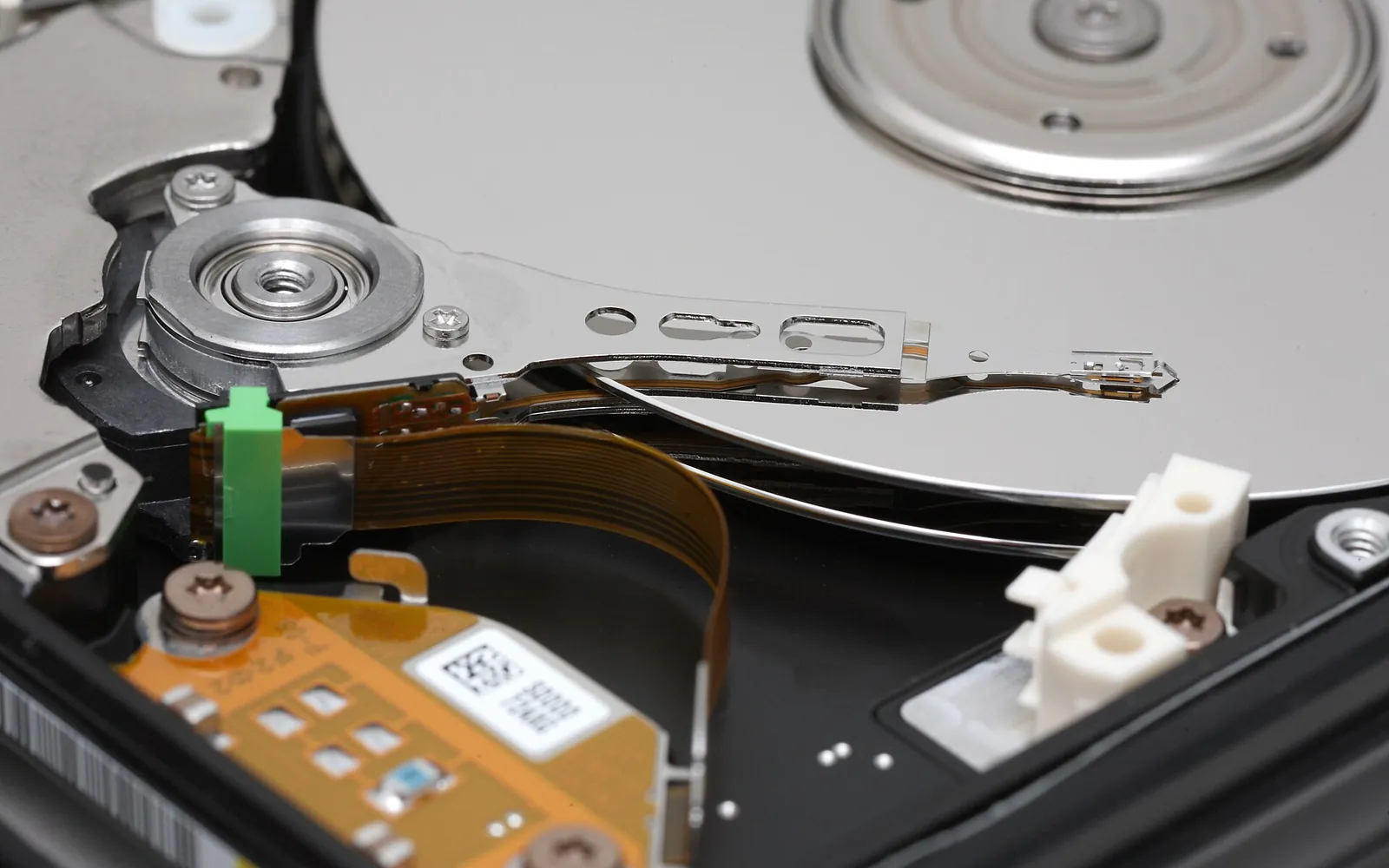
To defragment a hard drive in Windows 11 you use a built-in tool called Defragment and Optimize Drives, usually shortened to Optimize Drives. Most of the time you do not need to do anything: Windows runs it on a schedule in the background. But if your PC has a spinning hard disk that feels slow, or you just want to know what the tool is doing to your SSD, it is worth a look.
This guide explains how to run it by hand, how to read what it shows, how to change the schedule, and why SSDs are handled differently. The steps apply to Windows 11 version 24H2 and 25H2 and are the same on Home and Pro.
What defragmenting does, and what trimming does
On a hard disk drive (HDD), files are stored on spinning platters. Over time a file can end up in many separate pieces, and the read head has to jump around to collect them. Defragmenting rearranges the pieces so each file sits together, which Microsoft describes as lining files up so they are easier for the drive to read.
A solid-state drive (SSD) has no moving parts, so the position of the pieces hardly matters. Instead, Windows sends a trim: it tells the SSD which blocks are no longer in use so the drive can clean them up while it is idle. That keeps write speed consistent over time.
The good news is that you do not have to choose. The tool recognises the media type of each drive and the same Optimize button defragments an HDD and trims an SSD.
Open Optimize Drives
- Select the search box on the taskbar or open Start.
- Type defrag.
- Select Defragment and Optimize Drives.
The window lists every drive with its Media type (Hard disk drive or Solid state drive), the date it was last analyzed or optimized, and its current status. A status such as “OK” with a recent date means the schedule is doing its job.
Analyze and optimize a hard drive
- Select the hard drive in the list.
- Select Analyze. Windows checks it and shows the percentage of fragmented files in the status column.
- Select Optimize to defragment it now.
The first run on a large, full drive can take a long time, from minutes to hours. You can keep working while it runs, though the PC may feel slower on that drive. A laptop should be plugged in. The Analyze button is greyed out for SSDs because fragmentation analysis is not meaningful for them; Optimize is still available.
Change the automatic schedule
Windows optimizes drives automatically, weekly by default. To check or change that:
- In the Optimize Drives window, find Scheduled optimization.
- Select Change settings.
- Keep Run on a schedule ticked and choose Daily, Weekly or Monthly.
- Under drives, choose which drives are included. Microsoft also offers an option to increase the priority if three scheduled runs in a row are missed.
- Select OK.
There is rarely a good reason to turn the schedule off. If you notice heavy disk activity at a bad moment, the task usually runs when the PC is idle; leaving the PC on and idle for a while once a week is enough.
When defragmenting is not the fix
A slow PC is far more often caused by something other than fragmentation:
| Symptom | More likely cause | Where to look |
|---|---|---|
| Disk at 100% in Task Manager | A process, indexing or a failing drive | Disk usage 100% fix |
| Clicking or very slow HDD | Failing hardware | Check SSD and drive health |
| Errors when opening files | File system errors | Run CHKDSK |
| Little free space | Full drive | Clean temp files |
| General sluggishness | Startup apps, updates | Slow performance guide |
Defragmenting a drive with bad sectors or a failing motor can make things worse, because it reads and rewrites a lot of data. If a hard drive makes new noises or Windows warns about it, back up your files first, using File History or a simple copy to another drive, and then investigate.
SSDs: what not to do
- Do not run third-party defragmenters on an SSD. They add writes for no speed benefit.
- Do not turn off the Windows schedule for an SSD; it is what sends the trim.
- Do not worry if an SSD shows “Needs optimization” occasionally. Select Optimize and it will be trimmed in seconds.
Microsoft’s general advice for a faster PC lists optimizing drives alongside freeing space and managing startup apps, rather than as a cure on its own.
Defragmenting from the command line
For scripts, the same engine is available as the defrag command in an administrator Terminal. For example, defrag C: /A analyzes the C: drive and defrag C: /O runs the correct optimization for its media type. Run defrag /? to see every option. For most people the window is simpler and does the same job.
Reading the status column
The status text tells you whether to act:
- OK (x% fragmented) on a hard drive means the schedule is keeping up. A few percent is normal and not worth a manual run.
- Needs optimization means the drive has not been optimized recently or is noticeably fragmented. Select Optimize.
- Optimization not available means the tool cannot work on that drive, as described below.
- A last run date that is weeks old on an internal drive suggests the schedule is off or the PC is rarely left idle. Check the schedule settings.
External USB hard drives
External hard disks that stay connected appear in the list and can be optimized like internal ones. Plug a laptop in first, do not unplug the drive while it runs, and use Safely Remove from the taskbar when it is done. For a USB flash drive there is nothing to gain; if one misbehaves, reformatting is usually the better fix, as our guide to formatting a USB drive in Windows 11 explains.
If a drive is missing or not available
Some drives cannot be optimized: network drives, certain removable media and volumes the tool does not support show as unavailable or do not appear. If a normal internal drive is missing, check that it is initialised and has a drive letter in Disk Management, as described in our guide to an SSD not detected in Windows 11, and run CHKDSK on it.
More disk and repair tools are collected in the Windows 11 troubleshooting hub.
Frequently asked questions
How do I defragment a hard drive in Windows 11?
Search Start for defrag, open Defragment and Optimize Drives, select the hard drive, select Analyze to see whether it needs work, then select Optimize.
Should I defrag an SSD?
No manual defragmenting is needed. Windows treats SSDs differently: the Optimize button sends a trim to the drive, which tells it which blocks it can clean up. Leave the automatic schedule on.
Does Windows 11 defrag automatically?
Yes. Windows optimizes drives automatically on a schedule, weekly by default. You can see the last run and change the schedule in the Optimize Drives window.
How long does defragmenting take?
It depends on the drive size, how full it is and how fragmented the files are, from a few minutes to several hours on a large, busy hard drive. You can keep using the PC while it runs.
Why is a drive listed as not available?
Some drives cannot be optimized, for example certain removable or network drives, or volumes using a file system the tool does not handle. Check the drive in Disk Management and with CHKDSK if a normal internal drive is affected.
Sources
Windows 11 Field Guide Editorial Team
Editorial team
The Windows 11 Field Guide team writes and updates independent Windows 11 guides and checks each step against Microsoft's documentation and the current Settings app.

