Settings
How to Format a USB Drive in Windows 11: FAT32, exFAT, NTFS
Written by Windows 11 Field Guide Editorial Team · Updated
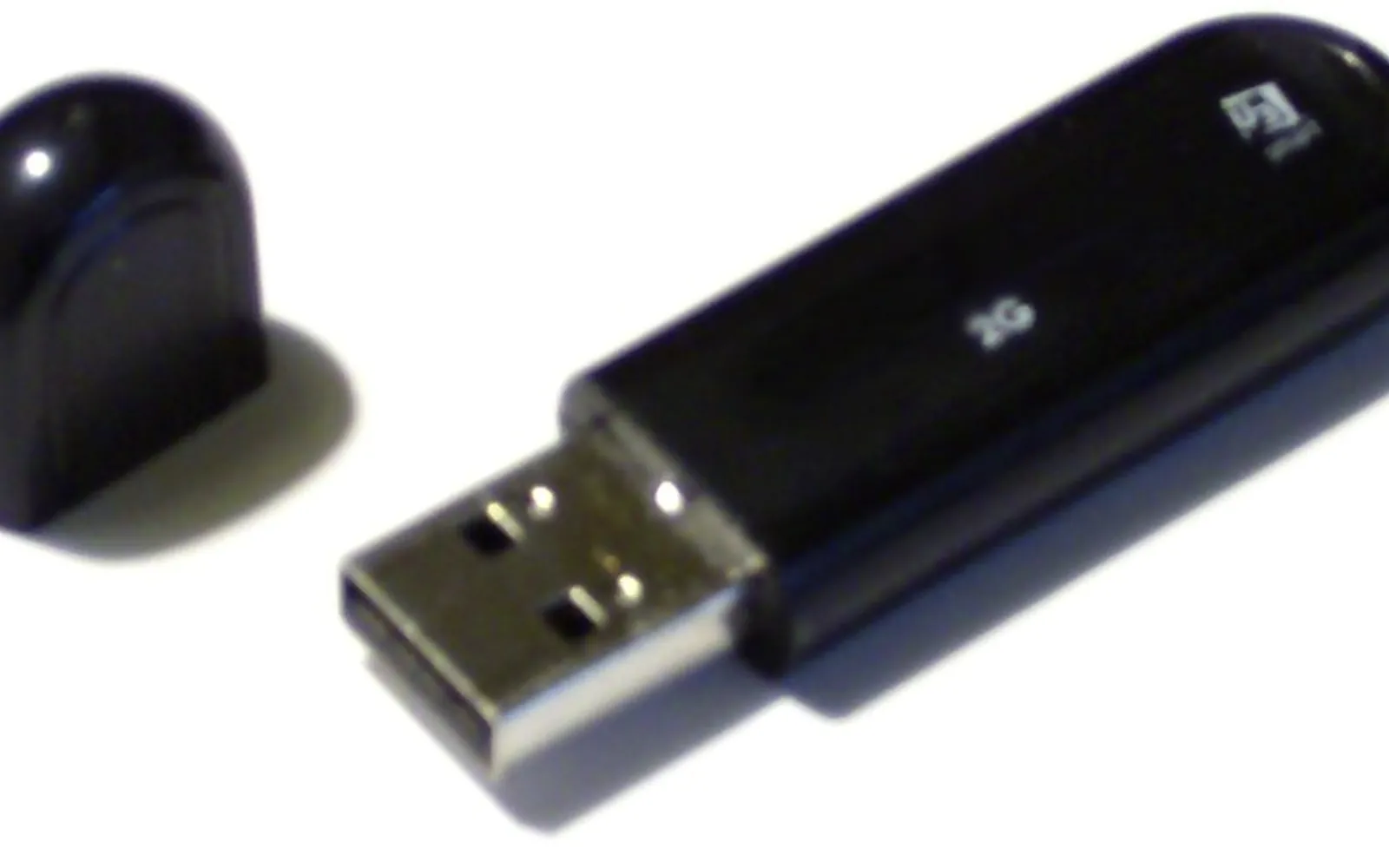
You usually need to format a USB drive in Windows 11 when a new stick arrives in a format you do not want, when a drive starts throwing errors, or when you want to wipe it before giving it away. The job takes a minute, but two choices matter: the file system (FAT32, exFAT or NTFS) and whether you run a quick or full format. This guide shows how to format a USB drive in Windows 11 with File Explorer, Disk Management and the command line, and how to choose the right options.
The steps are the same in Windows 11 version 24H2, 25H2 and 26H2, and they also work for SD cards and external hard drives.
Before you start: formatting erases the drive
Formatting builds a new, empty file system on the drive. Everything on it disappears from view, so copy off anything you want to keep first. If you have already formatted the wrong drive by mistake, stop writing to it and read our guide on how to recover deleted files in Windows 11 before you do anything else.
Two other checks save trouble:
- Make sure you have the right drive. Unplug other USB drives and memory cards so only the one you want to format is connected. Note its drive letter in File Explorer.
- Close anything using the drive. Windows cannot format a volume while a file on it is open, and you cannot format the partition that Windows itself runs from.
Method 1: Format a USB drive in File Explorer
This is the quickest route and the one most people need.
- Plug in the drive and open File Explorer (Windows key + E).
- Select This PC in the left pane.
- Right-click the USB drive and select Format. (On the compact right-click menu, Format is listed directly; if you do not see it, select Show more options first.)
- Under File system, choose exFAT, NTFS or FAT32 (see the table below).
- Leave Allocation unit size at Default allocation size. Microsoft’s documentation for the format command recommends default settings for general use.
- Type a Volume label, for example BACKUP or PHOTOS, so you can recognise the drive later.
- Tick Quick Format for a drive you know is healthy. Untick it to run a full format.
- Select Start, then OK to confirm the warning. When the Format Complete message appears, the drive is ready.
FAT32 vs exFAT vs NTFS: which file system to pick
| File system | Best for | Main limit |
|---|---|---|
| exFAT | USB sticks and memory cards you move between Windows PCs, Macs, cameras and TVs | No permissions, encryption or journaling |
| NTFS | Drives used only with Windows PCs, including large external drives | Some other devices read NTFS but cannot write to it, or do not read it at all |
| FAT32 | Older devices, car stereos, some game consoles and firmware update sticks that require it | A single file cannot be larger than 4 GiB |
The 4 GiB file limit is the one that catches people out: a FAT32 stick refuses to take a large video file or a disk image even when it has plenty of free space. Microsoft’s file system comparison lists the maximum file size as 4 GiB for FAT32 and far larger for exFAT and NTFS.
NTFS adds features that matter on a Windows drive: access control lists (file permissions), file system level encryption, built-in compression and metadata journaling, which helps it recover after a power cut. exFAT has none of these, but it is widely supported by other devices, which is why most large memory cards ship with it.
If you are not sure, pick exFAT for a stick you will share and NTFS for a drive that stays with your Windows PC. If a device needs FAT32 and Windows does not offer it for a large drive, check the device manual: many devices that once needed FAT32 now accept exFAT.
Quick format or full format?
According to Microsoft’s documentation for the format command, a quick format deletes the file table and root directory but does not perform a sector-by-sector scan for bad areas. Microsoft advises using quick format only for previously formatted volumes that you know are in good condition.
A full format also scans the whole drive for bad areas. It takes much longer, sometimes hours on a large hard drive, but it is the better choice when:
- the drive has been giving read or write errors;
- you bought a used drive and want to check it;
- you want a bit more assurance that old files are harder to recover before you give the drive away.
Method 2: Format with Disk Management
Disk Management shows every partition on the drive, which helps when File Explorer shows the wrong size or does not show the drive at all.
- Right-click Start and select Disk Management (or press Windows key + R, type diskmgmt.msc and press Enter).
- Find the USB drive in the lower pane. Check the size carefully so you do not pick an internal disk.
- Right-click its volume and select Format.
- Set the volume label and file system, keep the allocation unit size at Default, decide on Perform a quick format, and select OK.
If the drive shows only Unallocated space, right-click it and choose New Simple Volume. The wizard lets you set the size, drive letter and file system, and formats the drive at the end. Our guide to partitioning a hard drive in Windows 11 covers that wizard in more detail. Microsoft notes that some USB disks cannot be initialized; they only need to be formatted and given a drive letter.
Current Windows 11 builds also have a Settings view of the same information under Settings > System > Storage > Advanced storage settings > Disks & volumes, where you can open a volume’s Properties and format it. Both tools do the same job, so use whichever you prefer. The Windows 11 storage settings guide explains the rest of that page.
Method 3: Format from the command line
The format command is useful when you want a repeatable command or when the graphical tools misbehave. Open Terminal (Admin) from the right-click Start menu and run, for example:
format E: /FS:exFAT /Q /V:BACKUP- E: is the drive letter. Check it in File Explorer first, because the command erases that volume.
- /FS: sets the file system (FAT32, NTFS, exFAT and others are supported).
- /Q runs a quick format. Leave it out for a full format.
- /V: sets the volume label.
Microsoft’s reference adds that you must be an administrator to format a hard drive and that you cannot format disks over a network.
When formatting fails or the drive is missing
“Windows was unable to complete the format.” Close every app that might be using the drive, then try Disk Management. If the drive has several partitions or an odd layout (common with sticks used for Linux or camera firmware), Disk Management shows them all.
The drive is write-protected. Some SD cards and adapters have a small lock switch on the side. Slide it to the unlocked position and plug the card in again.
The drive does not appear at all. Try another USB port, ideally one directly on the PC rather than a hub, and check Disk Management. Our guide to USB devices not recognized in Windows 11 walks through driver and power checks.
Errors come back after formatting. Run a file system check with CHKDSK in Windows 11. If a drive keeps failing after a full format, it is probably worn out. Flash memory has a limited life, and a cheap stick is not worth trusting with your only copy of anything.
Formatting a USB stick for Windows installation
You do not need to format a stick before making Windows 11 installation media. The Media Creation Tool formats the drive itself, and it erases whatever was on it. See how to create a Windows 11 bootable USB for the full process, including which tool to use.
Related guides
Frequently asked questions
Does formatting a USB drive delete everything?
Yes. Formatting creates a new, empty file system. A quick format leaves the old data on the chips until it is overwritten, but you should treat it as gone and back up first.
Should I choose FAT32, exFAT or NTFS for a USB stick?
exFAT is the usual choice for a stick you move between computers and devices. NTFS is best for a drive only used with Windows. FAT32 is for old devices that need it, and it cannot store a file larger than 4 GiB.
What is the difference between quick format and full format?
A quick format deletes the file table and root folder but does not check the drive for bad areas. A full format also scans the whole drive, so it is slower but can find failing sectors.
Why can't I format my USB drive in Windows 11?
Common causes are a file still open on the drive, a physical write-protect switch, a damaged partition, or a failing drive. Close apps, check the switch, then try Disk Management. A drive that still fails may need replacing.
Can I format a USB drive from Command Prompt?
Yes. In an administrator terminal, format E: /FS:exFAT /Q /V:LABEL formats drive E as exFAT with a quick format. Double-check the drive letter first, because the command erases that volume.
Sources
Windows 11 Field Guide Editorial Team
Editorial team
The Windows 11 Field Guide team writes and updates independent Windows 11 guides and checks each step against Microsoft's documentation and the current Settings app.