Download and install
Create Windows 11 Bootable USB with Microsoft's Free Tools
Written by Windows 11 Field Guide Editorial Team · Updated
To create Windows 11 bootable USB media you need one free tool from Microsoft, a USB flash drive of 8 GB or more, and about half an hour, most of which is download time. The result is a stick you can use to clean install, reinstall or repair Windows 11 on any compatible PC. This guide covers the Media Creation Tool method, what to do if you already have an ISO, how to boot from the drive, and the snags people hit most often.
What you need
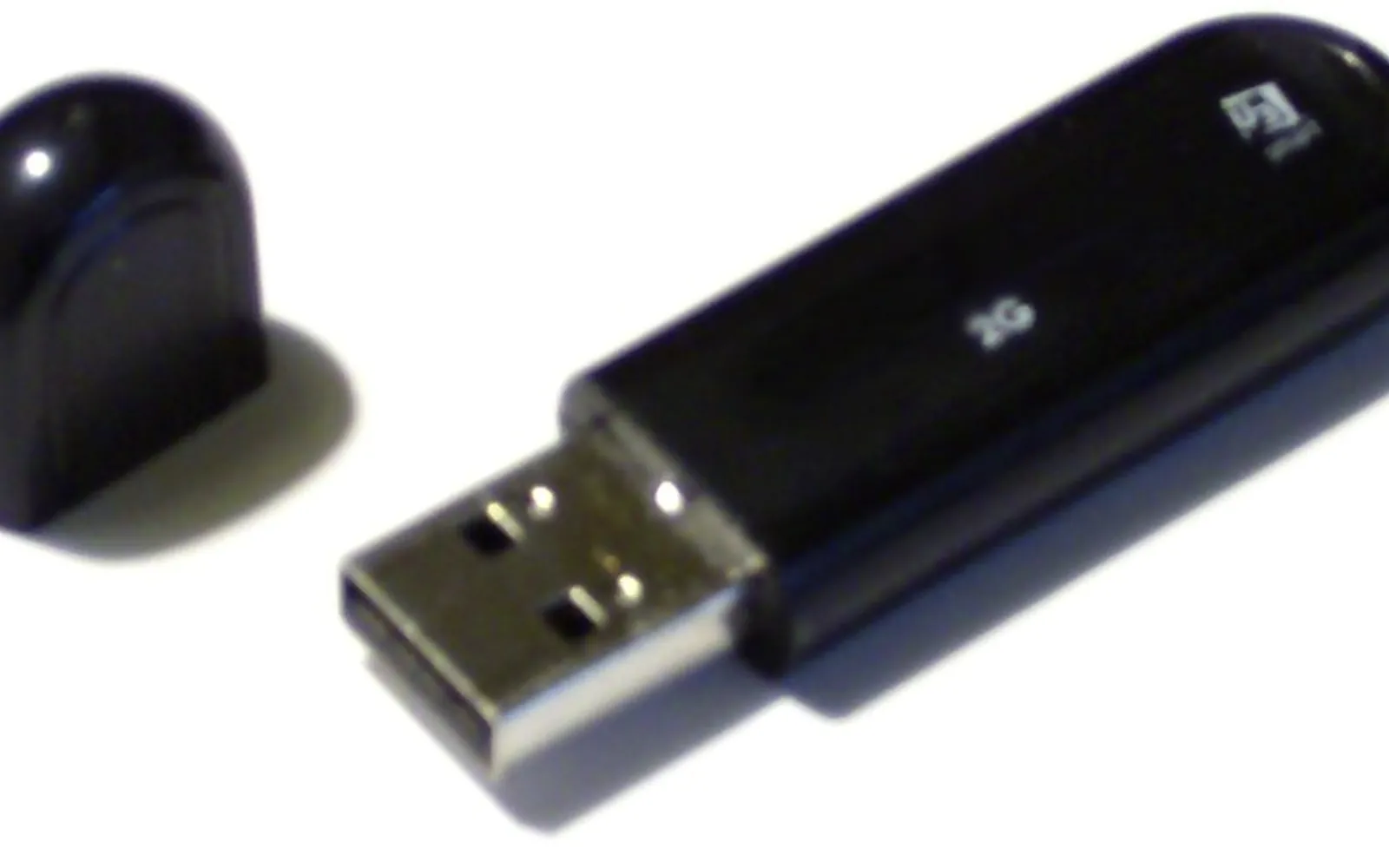
- A USB flash drive with at least 8 GB. Microsoft recommends a blank one because everything on it is erased. Copy anything you want to keep first.
- A working Windows PC with an internet connection. It does not have to be the PC you plan to install on.
- Enough free space on that PC for temporary files during the download.
- A license for the target PC. The USB itself is free and reusable, but each installation needs a valid product key or digital license. Many PCs have the key stored in the firmware, and setup picks it up automatically.
Also check the target PC meets the Windows 11 requirements, including TPM 2.0 and Secure Boot capability. Our Windows 11 download hub summarises them.
Method 1: Media Creation Tool (x64 PCs)
This is the simplest method because the tool downloads Windows 11 and writes the USB in one pass.
- Open the Windows 11 download page.
- Under Create Windows 11 Installation Media, select Download Now. You get a file called MediaCreationTool.exe.
- Run it. You need to be an administrator. Accept the license terms.
- On the language and edition screen, keep “Use the recommended options for this PC” if you are making the USB for this computer. Untick it to choose a different language for another PC.
- Choose USB flash drive and select Next.
- Pick your drive from the list. Double-check it is the right one, since it will be wiped.
- Wait while the tool downloads Windows 11 and creates the media. When it says your USB flash drive is ready, select Finish.
The Media Creation Tool only makes media for x64 processors. If the PC you are installing on uses an Arm chip, use Method 2 with the Arm64 ISO. For more on the tool itself, see our Media Creation Tool guide.
Method 2: start from an ISO
If you already have a Windows 11 ISO, or you need the Arm64 version, you have to put it on a USB drive yourself. Our Windows 11 ISO download guide explains where to get each image and how to check its SHA256 hash.
Things to know before you go this way:
- A bootable USB is more than a copy of the ISO’s files. The drive has to be formatted and laid out so the PC’s UEFI firmware can start from it. Use a USB-writing tool you already trust, or, on x64, simply use the Media Creation Tool instead.
- For Arm-based PCs, Microsoft says USB media made from the Arm64 ISO may need drivers from the device manufacturer to boot. Check your PC maker’s support pages first; some offer their own recovery images.
- The ISO can also be mounted in File Explorer to run setup.exe without any USB at all, which is handy for in-place repairs. See reinstalling Windows 11 while keeping your files.
How to boot from the USB
- Plug the USB into the PC you want to install on.
- Restart the PC. If it boots straight into the existing Windows, the firmware is still set to start from the internal drive.
- Press the PC’s boot menu key immediately after power-on. Common keys include F2, F12, Delete and Esc, but it varies by manufacturer; check your PC’s documentation or support site.
- Pick the USB drive from the list (it is often shown with “UEFI” in front of its name).
If Windows is running, you can also go to Settings > System > Recovery, select Restart now next to Advanced startup, then choose Use a device and select the USB drive. This option only appears on some PCs.
Microsoft points out a common trap: if the PC was not fully shut down, it may skip the boot menu and resume Windows. Select Shut down from the power button on the sign-in screen or Start menu, then turn the PC on again and press the boot key.
Troubleshooting the USB
The USB does not appear in the boot menu. Try a different USB port, preferably one directly on the PC rather than a hub. Recreate the media if the tool reported any error. If it still does not show, your PC maker’s support site will have instructions for its UEFI boot settings, including any setting that blocks USB boot.
Setup keeps restarting on the “Install Windows” screen. If you changed the boot order to put USB first, setup can loop back to the first screen after installation. Change the boot order back so the internal drive comes first, or remove the USB at the first restart.
The Media Creation Tool fails partway. Check your connection and free space, then run it again. Our Windows 11 download errors page covers common error codes.
What to do with the USB next
Once the PC boots from the drive you will see the Install Windows page. From there you can:
- Clean install: wipe the drive and start fresh. Follow our clean install Windows 11 guide.
- Repair: choose Repair my PC to reach recovery tools such as Startup Repair and System Restore.
Keep the USB somewhere safe and label it. Media created this way will keep working for a long time, although newer media means fewer updates to install afterwards, so recreate it now and then.
Want the stick back for everyday files afterwards? See how to format a USB drive in Windows 11.
Frequently asked questions
What size USB do I need for Windows 11?
Microsoft asks for a blank USB flash drive with at least 8 GB of space. Everything on the drive is deleted when the media is created.
Can I use the Windows 11 USB on more than one PC?
Yes. The installation media is not tied to one computer. Each PC still needs its own valid license to activate.
Why does my PC not boot from the Windows 11 USB?
Usually the boot order still puts the internal drive first, or the PC was not fully shut down. Use the one-time boot menu key for your PC, or check the manufacturer's instructions for UEFI boot settings.
Can the Media Creation Tool make an Arm USB?
No. Microsoft states the Windows 11 Media Creation Tool only creates media for x64 processors. Arm-based PCs have a separate Arm64 ISO.
Sources
Windows 11 Field Guide Editorial Team
Editorial team
The Windows 11 Field Guide team writes and updates independent Windows 11 guides and checks each step against Microsoft's documentation and the current Settings app.