Download and install
Windows 11 Media Creation Tool: Make a USB or ISO Safely
Written by Windows 11 Field Guide Editorial Team · Updated
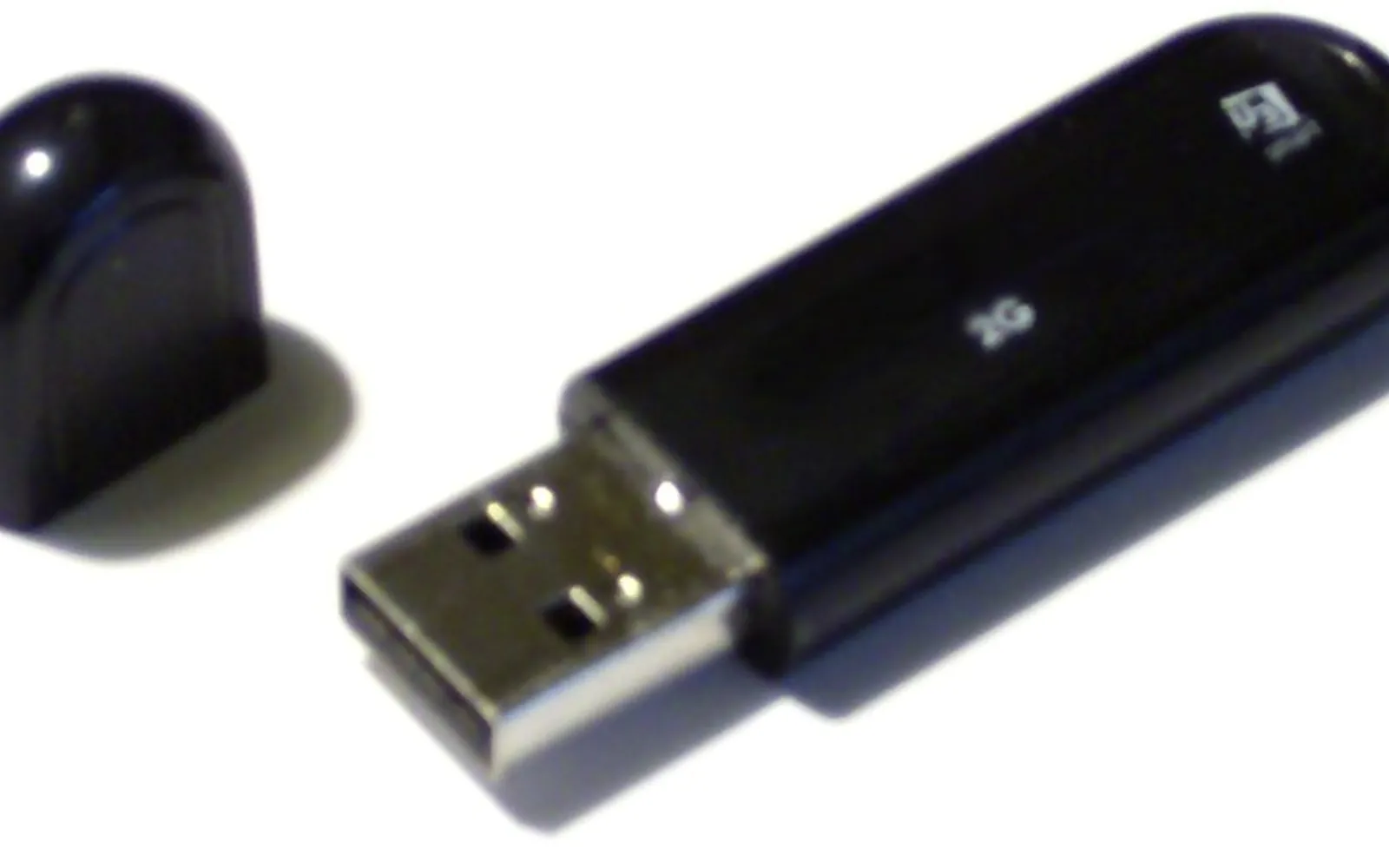
The Windows 11 Media Creation Tool is Microsoft’s free program for making installation media: it downloads Windows 11 and writes it to a USB flash drive, or saves it as an ISO file. You need that media to clean install Windows 11, reinstall it on a PC that will not start properly, or set up a PC with a new drive. This guide explains what the tool does and does not do, what you need before you start, each step, and how to get past the most common problems.
The tool downloads the current release of Windows 11. As of October 2026, Microsoft lists 25H2 and 26H2 as the versions in service for Home and Pro.
What the Media Creation Tool is for
Microsoft’s download page offers three options, and picking the right one saves time:
| Option | Best for | Notes |
|---|---|---|
| Installation Assistant | Upgrading the PC you are using from Windows 10 | Runs only on x64 processors and needs Windows 10 version 2004 or later |
| Media Creation Tool | Making a bootable USB or ISO to reinstall or clean install | Cannot make media for Arm-based PCs |
| Disk image (ISO) download | Getting the ISO directly for a USB, a virtual machine or later use | Multi-edition ISO; Microsoft publishes hashes to verify it |
If you only want to upgrade a working Windows 10 PC and keep your files, start with our guide to upgrading Windows 10 to Windows 11. If you prefer to download the ISO yourself, see Windows 11 ISO download. This page is about the middle option.
What you need first
Microsoft lists these requirements on its download page:
- A license: a Windows 11 license, or a Windows 10 device that qualifies for the upgrade.
- An internet connection (your provider’s data charges may apply).
- Enough free space on the computer, USB drive or external drive for the download.
- A blank USB flash drive of at least 8 GB, or a blank DVD of at least 8 GB with a DVD burner. Microsoft warns that any content on the flash drive will be deleted.
- A 64-bit target PC: Windows 11 only runs on 64-bit processors.
- A compatible target PC: check it with the PC Health Check app or our Windows 11 compatibility check guide.
Microsoft also advises choosing the same language you use now, so that Windows Setup can keep your settings where it offers to.
Step by step
- Back up. Microsoft recommends saving your work and backing up the PC before you install. Copy anything you need off the USB drive too.
- Download the tool from Microsoft’s Windows 11 download page, under Create Windows 11 Installation Media. Download it only from Microsoft.
- Run it as administrator. Right-click the downloaded file and choose Run as administrator, then accept the license terms.
- Choose language, edition and architecture. The tool suggests settings for the PC you are using. Untick the recommended option if you are making media for a different PC. Windows 11 is 64-bit only.
- Choose the media: USB flash drive writes directly to a connected stick; ISO file saves an image you can burn to a DVD or use later.
- Wait. The tool downloads Windows 11 and builds the media. On a slow connection this takes a while; leave the PC awake.
- Finish. Select Finish when it reports the media is ready.
You do not need to format the USB stick first; the tool erases it. If you want a clean, labelled stick for other uses later, our guide to formatting a USB drive in Windows 11 shows how.
Use the media on the target PC
- Plug the USB drive into the PC you want to install on.
- Start the PC and open its boot menu. Microsoft notes that this is often a key such as F2, F12, Delete or Esc pressed at startup, and that you may instead need to change the boot order in the UEFI/BIOS settings. Our guide to Windows 11 BIOS UEFI settings explains how to get there from Windows.
- Choose the USB drive. On the Install Windows page, choose language, time and keyboard, then continue.
- For a full wipe-and-install, follow clean install Windows 11. The media can also repair a PC: choose Repair my PC to reach the Windows recovery environment.
After installing, check Windows Update for the latest updates and visit the PC maker’s site for any extra drivers. If you changed the boot order, Microsoft notes the Install Windows page may appear again after installation; change the boot order back to fix it.
Common problems
The tool will not run or closes straight away. Run it as administrator, close other installers, and check you have enough free disk space. Restart the PC and try again.
“This PC can’t run Windows 11” or the target PC refuses to install. The hardware does not meet the requirements. Microsoft warns that installing on hardware that does not meet them is not recommended, such a PC is not supported, and damage due to incompatibility is not covered by the maker’s warranty. See our TPM requirement guide for the most common blocker.
The USB drive is not listed. Reconnect it, try another port, and make sure it is at least 8 GB. Some drives with unusual partitions do not appear until they are formatted.
The PC boots back into the old system. Microsoft notes you should make sure the PC fully shut down before you boot from the media; a restart from the power menu is safer than shutting down with fast startup on. See turn off fast startup.
You have an Arm-based PC. The tool does not support Arm. Microsoft points Arm users to Windows Update and a separate Arm64 ISO page; our Windows 11 download hub explains the options.
Keep a spare stick
A USB installer is also an emergency tool. Label it with the date and keep it with your recovery drive. Our guide to the Windows 11 recovery drive explains the difference between the two and why it helps to have both.
Frequently asked questions
What size USB do I need for the Windows 11 Media Creation Tool?
Microsoft asks for a blank USB flash drive with at least 8 GB of space. Any content on the drive will be deleted.
Can I use the Media Creation Tool to upgrade my PC?
Microsoft presents it as the option for reinstalling or clean installing Windows 11. To upgrade the PC you are using from Windows 10, Microsoft points to the Windows 11 Installation Assistant as the simplest option.
Does the Media Creation Tool work for Arm PCs?
No. Microsoft says the tool cannot create installation media for Arm-based PCs.
Do I need a product key to use the Media Creation Tool?
You need a Windows 11 license, or a Windows 10 device that qualifies for the upgrade. A PC that was activated before usually reactivates automatically after reinstalling the same edition.
Should I pick USB flash drive or ISO file?
Pick USB flash drive to install on a PC straight away. Pick ISO file if you want to burn a DVD, keep a copy for later, or use it in a virtual machine.
Sources
Windows 11 Field Guide Editorial Team
Editorial team
The Windows 11 Field Guide team writes and updates independent Windows 11 guides and checks each step against Microsoft's documentation and the current Settings app.


