Download and install
Windows 11 Recovery Drive: Create a USB and Use It to Repair
Written by Windows 11 Field Guide Editorial Team · Updated

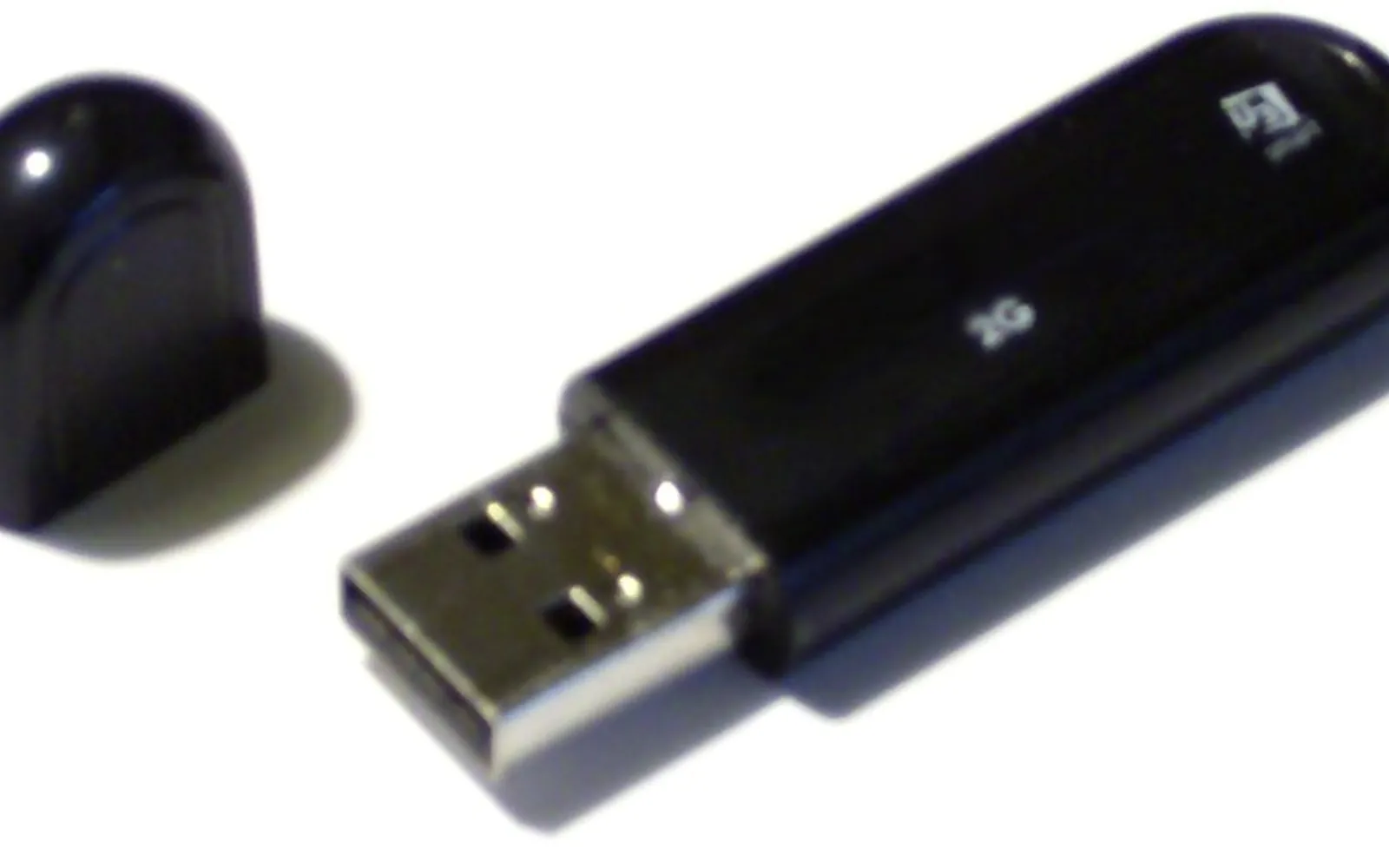
A recovery drive is a USB stick that can start your PC when Windows itself will not, and give you the repair and reinstall tools you would otherwise need a working system to reach. It takes a few minutes to make and is most valuable on the day you did not expect to need it. This guide shows how to create a Windows 11 recovery drive with Microsoft’s built-in tool, what it does and does not contain, how to boot from it, and when installation media is the better choice.
The steps apply to Windows 11 version 24H2, 25H2 and 26H2.
Before you start
Microsoft lists a few points worth knowing:
- The USB drive is erased. Use an empty drive, or one with nothing you need.
- Personal files are not included. A recovery drive copies system files, not your documents, photos or apps. Use Windows Backup, OneDrive or File History for those.
- Recreate it now and then. Microsoft suggests making a new one about once a year so it includes recent updates and improvements.
The tool shows how much space it needs once you get to the drive selection step; choose a drive at least that size.
Create the recovery drive
- Plug in the USB drive.
- Select Start, search for Recovery Drive and open it. You can also run
recoverydrive.exe. Approve the administrator prompt. - Make sure Back up system files to the recovery drive is selected, then select Next. Without this option, the drive only contains repair tools and cannot reinstall Windows.
- Select the USB drive and select Next.
- Select Create. Microsoft notes that many files need to be copied, so this can take a while.
- When it finishes, select Finish, remove the drive and label it with the PC’s name and the date.
Store it somewhere you will find it, not plugged into the PC.
What a recovery drive gives you
When you start the PC from the drive, it loads the Windows Recovery Environment (WinRE), the same blue menu you see after failed startups. From Troubleshoot > Advanced options you get:
| Tool | Use it for |
|---|---|
| Startup Repair | Fixing problems that stop Windows loading |
| Uninstall Updates | Removing a quality or feature update that broke startup |
| System Restore | Rolling back to a restore point; see System Restore |
| Command Prompt | Advanced repairs such as SFC and DISM |
| UEFI Firmware Settings | Reaching firmware setup |
| Recover from a drive | Reinstalling Windows from the recovery drive |
Recover from a drive reinstalls Windows. Microsoft warns that your personal files, apps and settings are removed, and you can choose to just remove your files or fully clean the drive. Use it only after the other tools have failed and your files are backed up.
Boot from the recovery drive
- Plug in the recovery drive with the PC off.
- Turn the PC on and open the boot menu. The key differs by maker (often F12, F11, F9 or Esc); check the PC maker’s support page.
- Choose the USB drive.
- Pick your keyboard layout, then Troubleshoot.
If the PC still starts Windows, you can also restart into recovery from Settings > System > Recovery > Advanced startup > Restart now, then choose Use a device to boot from the USB.
If BitLocker or device encryption is on, some tools ask for the recovery key. Keep it somewhere you can reach from another device; see BitLocker recovery key.
Recovery drive vs installation media vs Reset this PC
| Option | What it is | Best for |
|---|---|---|
| Recovery drive | This PC’s recovery environment and system files on USB | Repairing or reinstalling this PC when Windows will not start |
| Installation media | A fresh copy of Windows 11 from Microsoft | Clean installs, other PCs, or when the recovery drive is old |
| Reset this PC | Built-in reinstall from Settings | Starting fresh when Windows still runs |
Installation media is made with Microsoft’s Media Creation Tool; our create a Windows 11 bootable USB guide covers it. Reset this PC explains the built-in option and whether files are kept.
Problems creating the drive
- “We can’t create a recovery drive on this PC”: the recovery environment may be disabled or files missing. Install all updates, run SFC and DISM (SFC scannow guide), and try again. If it still fails, make installation media instead; it covers the same emergencies.
- The USB drive is not listed: try another port or drive; some very large or unusual drives are not offered.
- It takes hours: slow USB 2.0 sticks are the usual cause. A USB 3 drive in a USB 3 port is much faster.
Keep it useful
A recovery drive made years ago and never checked may not help when you need it. A short routine:
- Test it once: boot from it and check that the Troubleshoot menu appears, then restart without changing anything.
- Label it with the PC model and date, and keep it with your important papers rather than in a drawer of random USB sticks.
- Recreate it after big changes: a new feature update, a replaced drive or a factory reset.
- Do not reuse it for files: anything copied onto it can be overwritten next time, and you might accidentally delete the recovery files.
Keep your safety net current
A recovery drive is one part of being prepared. Pair it with a file backup, a known BitLocker recovery key and the Windows 11 recovery settings you can reach while the PC still works. If you ever face a PC that will not start, our Windows 11 won’t turn on and boot loop guides show which tool to try first.
Frequently asked questions
How do I create a recovery drive in Windows 11?
Search Start for Recovery Drive and open it. Make sure Back up system files to the recovery drive is selected, select Next, choose the USB drive, select Next and then Create.
Does a recovery drive back up my files?
No. Microsoft says it does not back up personal files, and Recover from a drive removes your files, apps and settings. Back up files separately first.
How big a USB drive do I need?
The tool tells you the minimum size when you choose a drive. Use an empty USB drive at least that size; everything on it is erased.
Can I use a recovery drive from another PC?
The recovery tools will usually start, but reinstalling Windows from it is meant for the PC that created it. For another PC, create installation media instead.
What is the difference from installation media?
A recovery drive is a copy of this PC's recovery environment and system files. Installation media made with Microsoft's tool contains a fresh copy of Windows for any compatible PC.
Sources
Windows 11 Field Guide Editorial Team
Editorial team
The Windows 11 Field Guide team writes and updates independent Windows 11 guides and checks each step against Microsoft's documentation and the current Settings app.